
Start Here
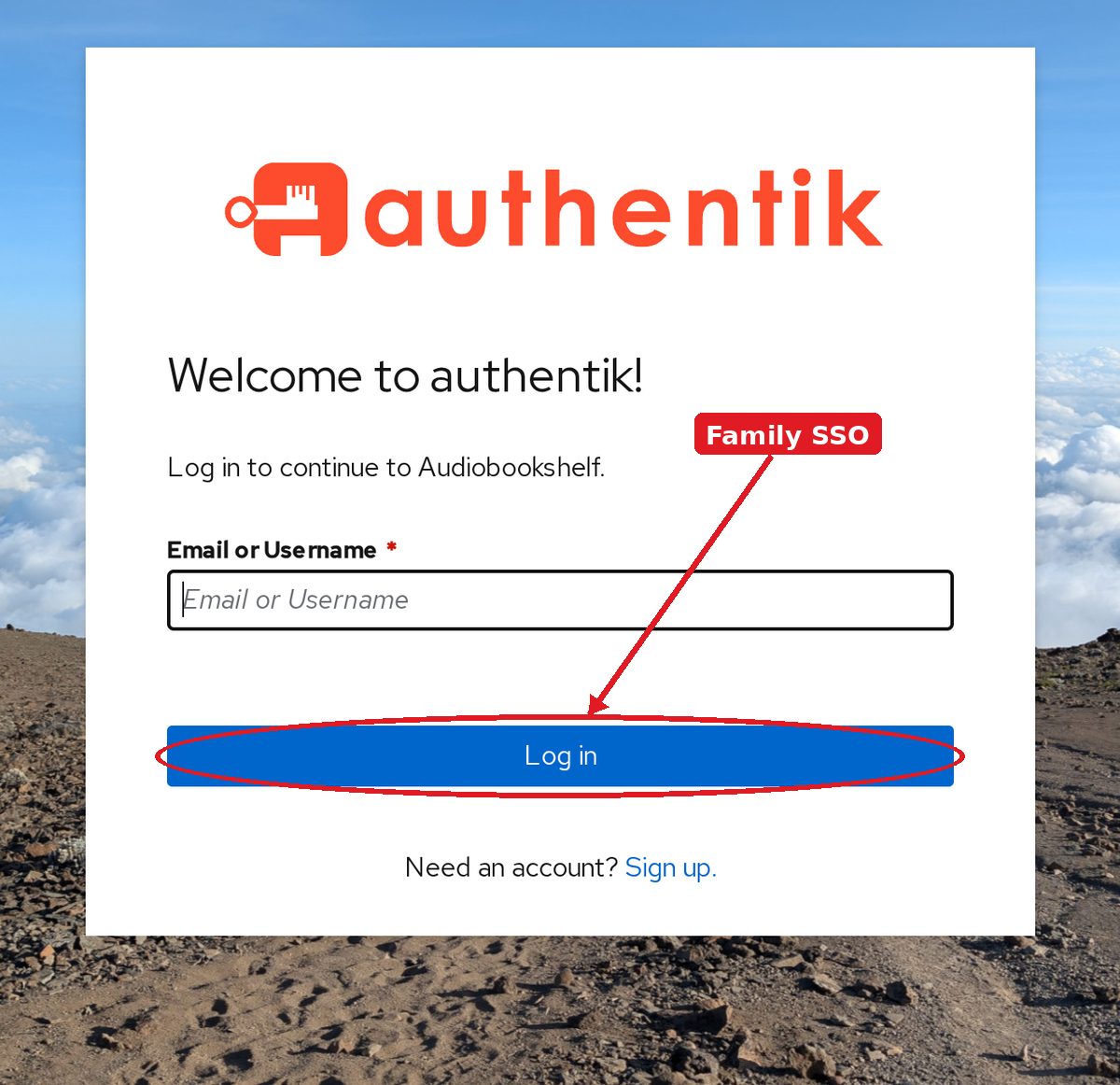
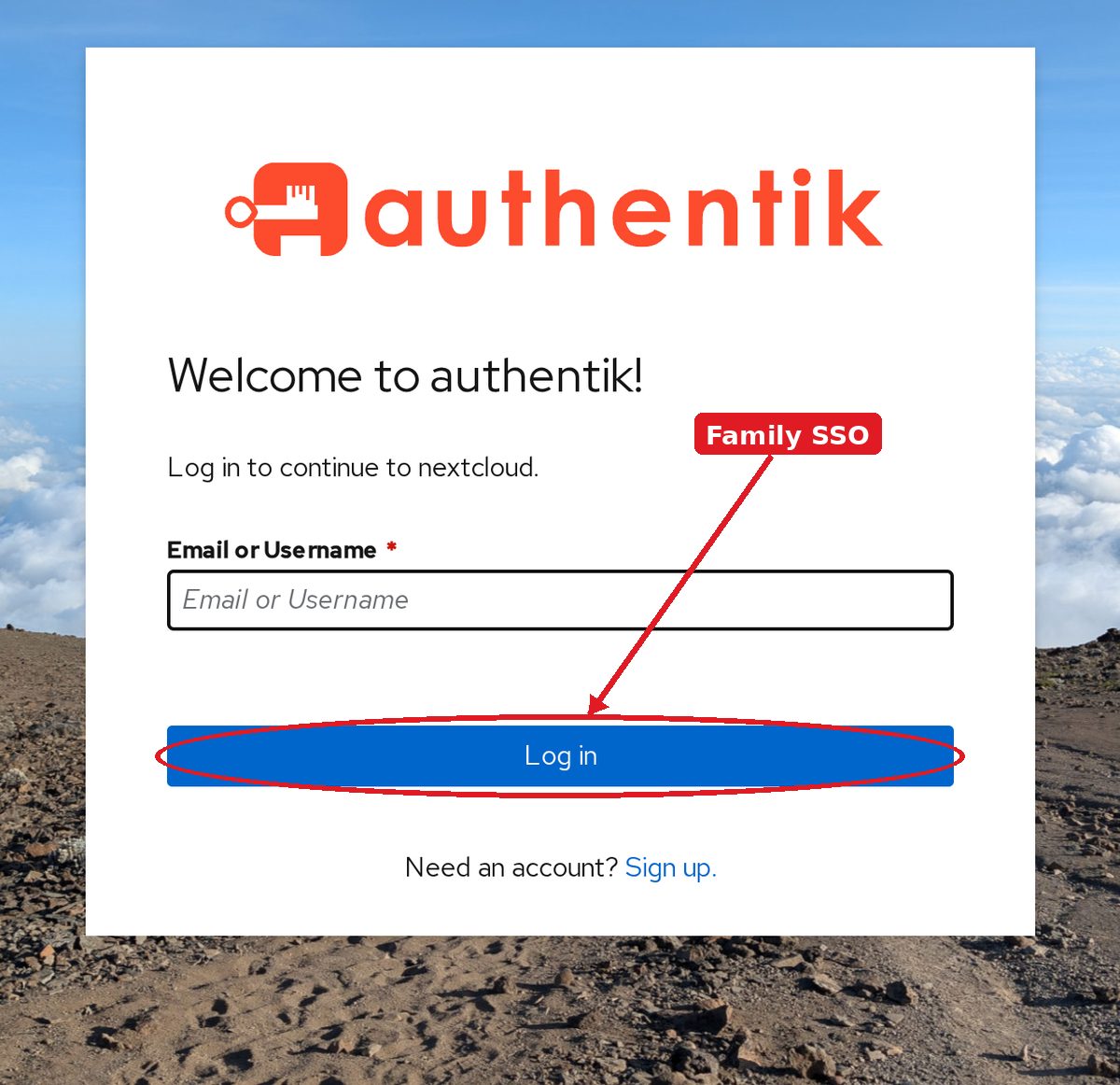
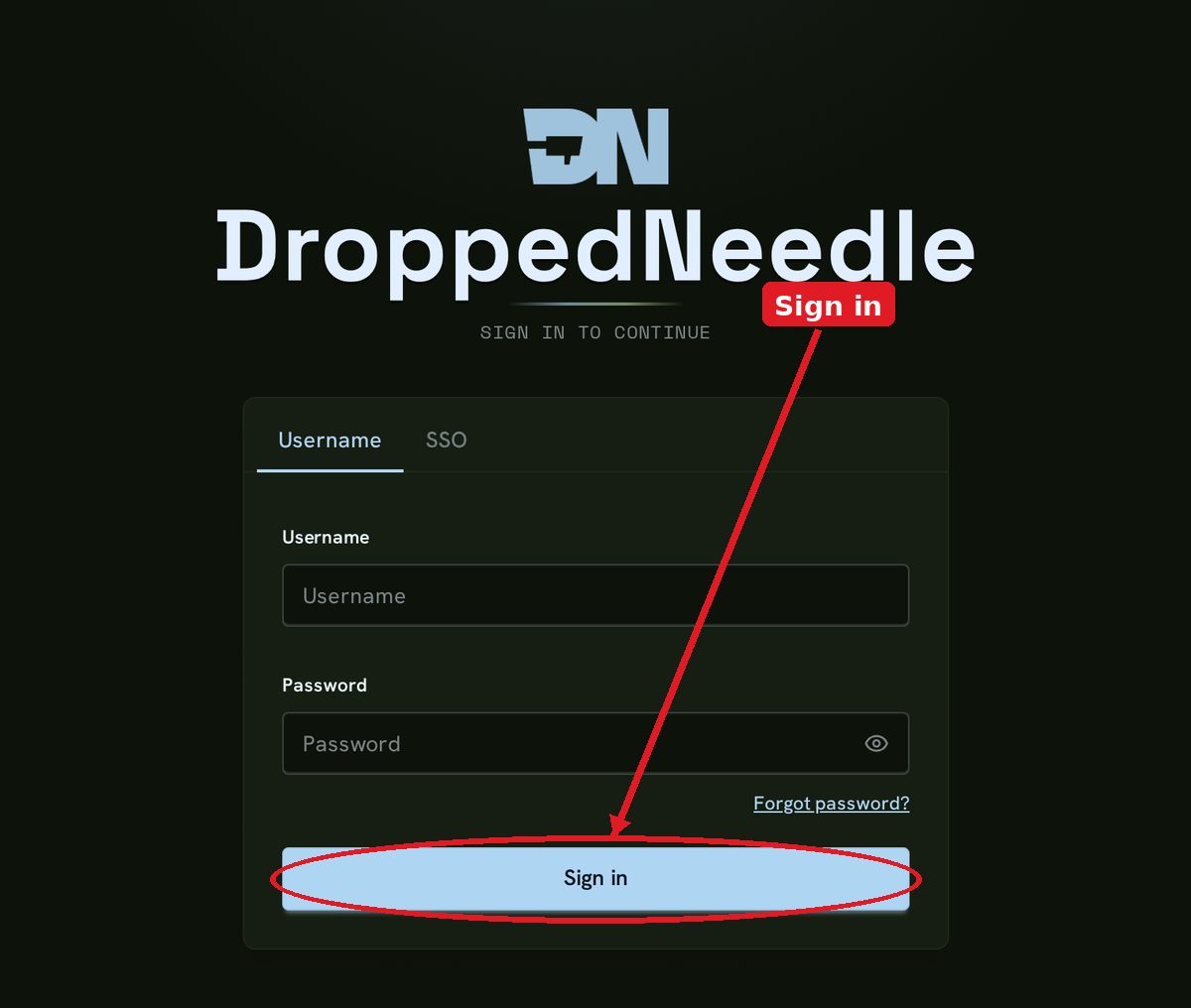
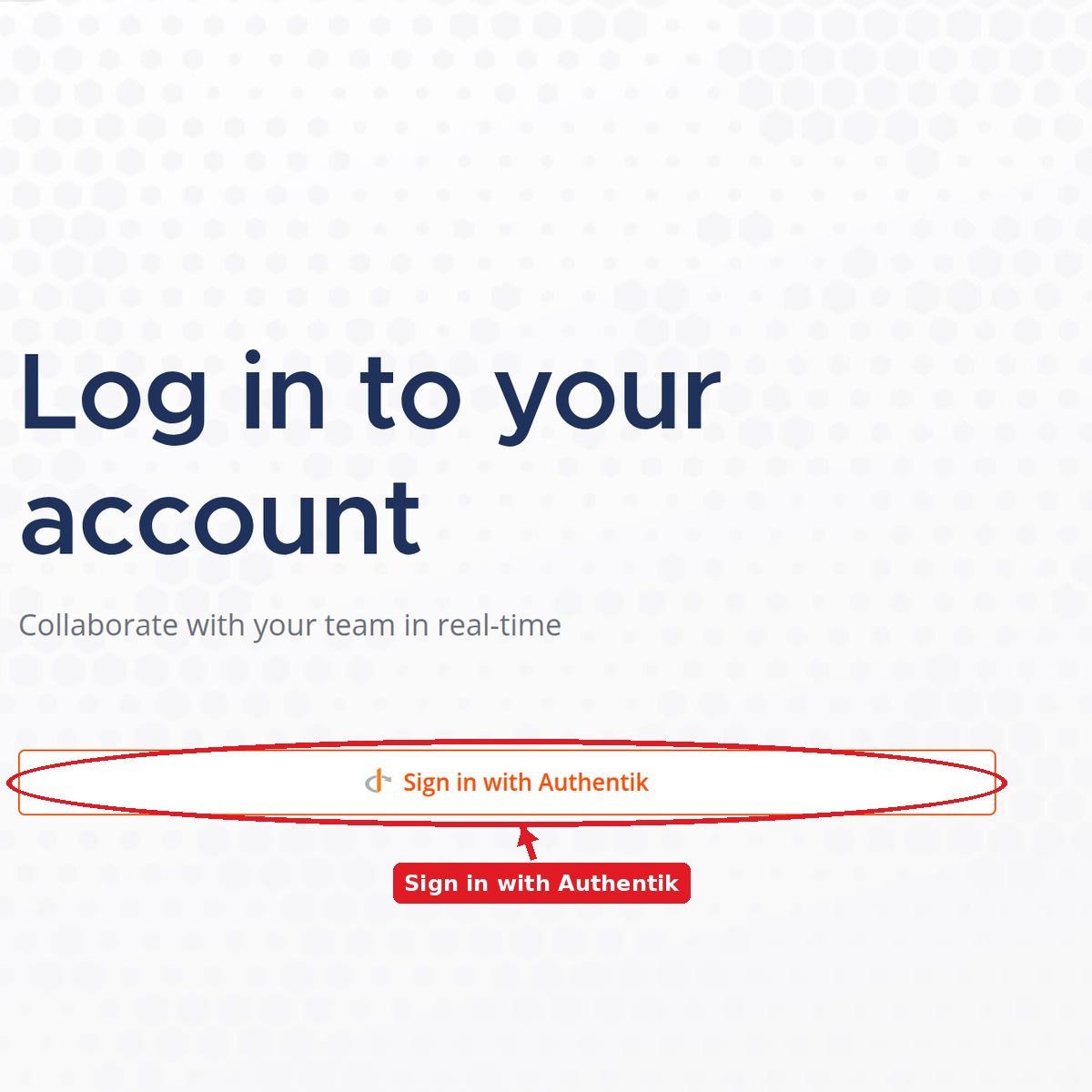
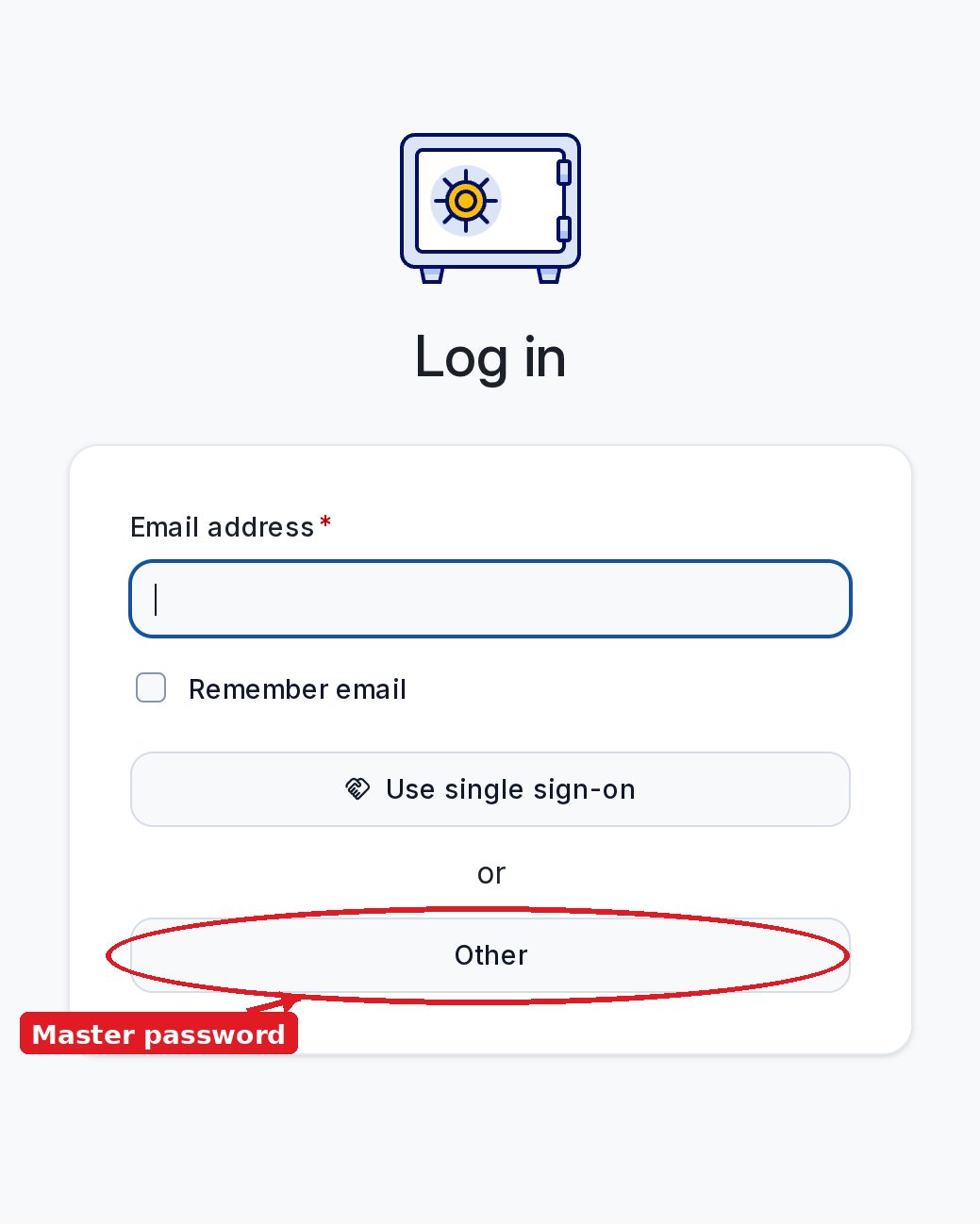
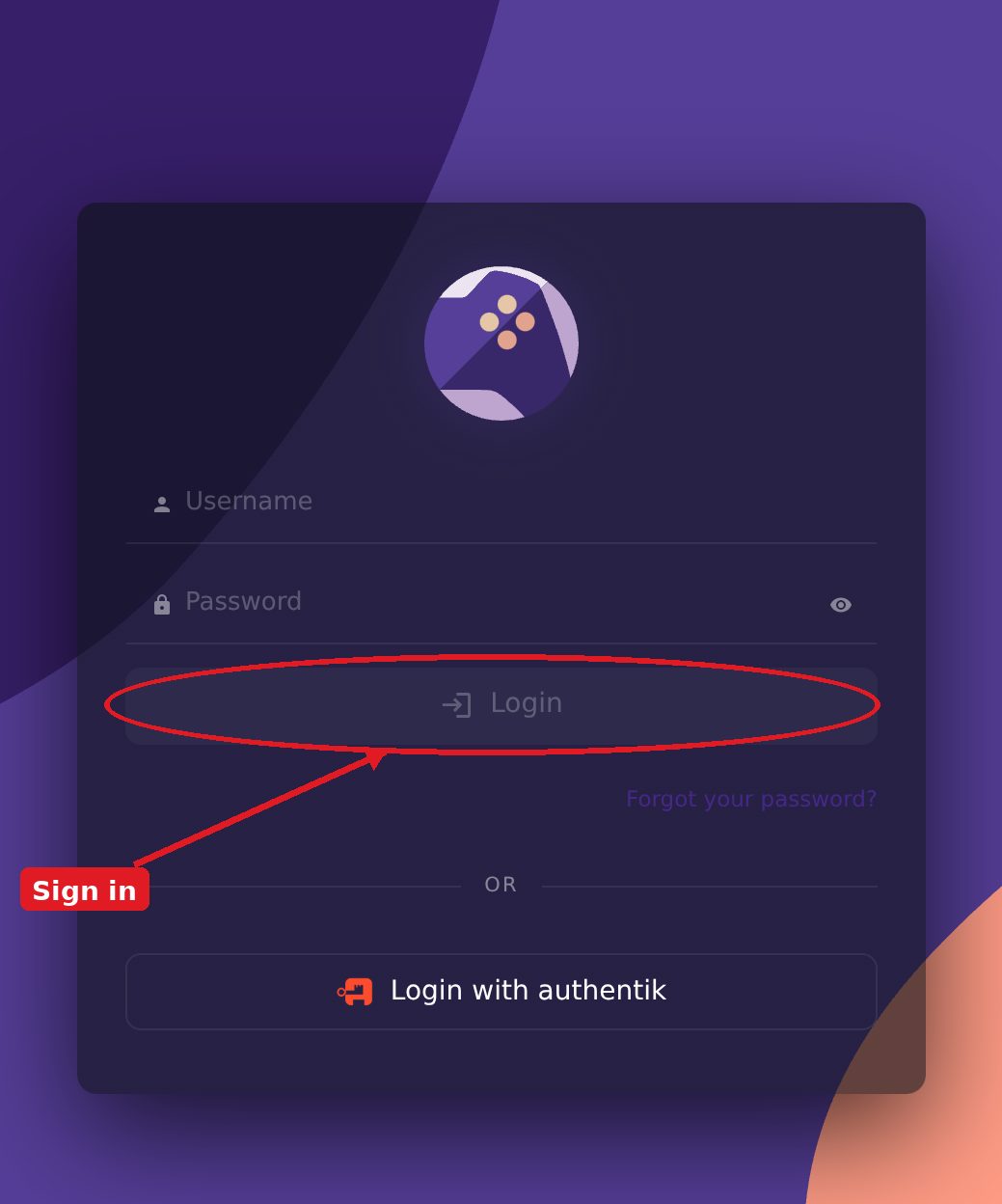
A short map of the house: make an account, then open each service. Red circles show the button to press. The long version lives on the wiki.
Your account
One login covers the apps that use family SSO. Jellyfin and Seerr use their own sign-in — ask an admin for that account.

Open sso.delarosafams.com on a computer the first time.
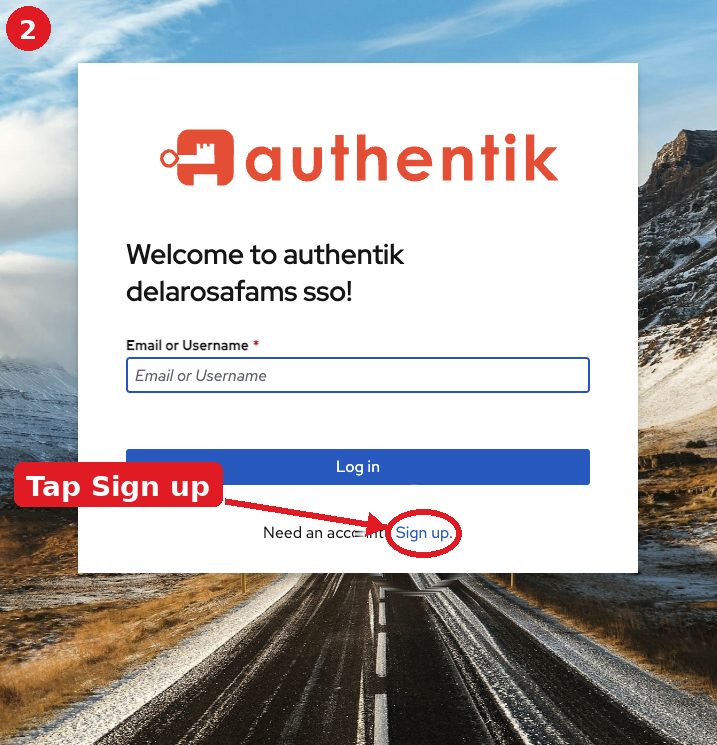
On the authentik card, press Sign up. It sits under the blue Log in button.
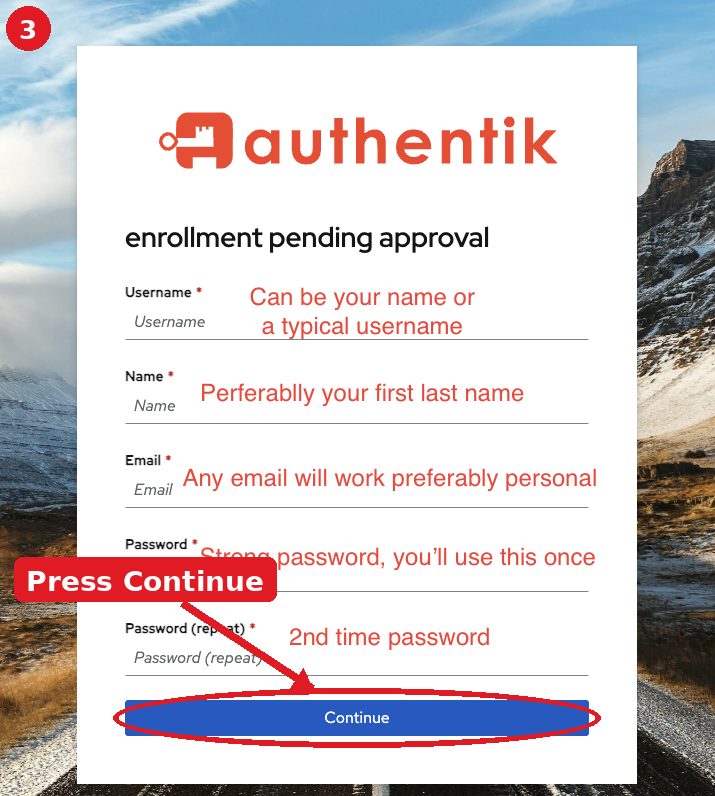
Fill username, first and last name, email, and a strong password (12 or more characters). Press Continue.
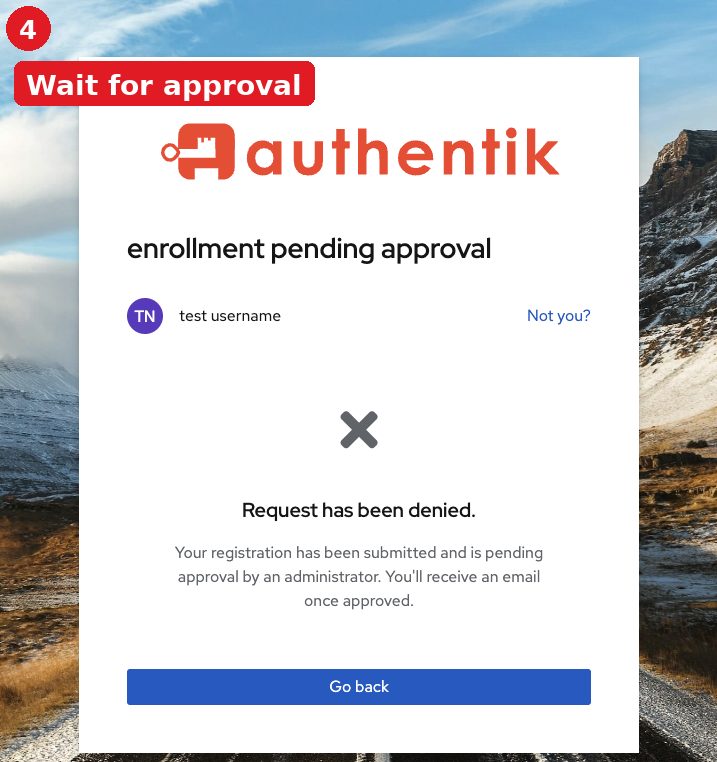
Wait for approval. An admin will email or text you. Then log in with your password.
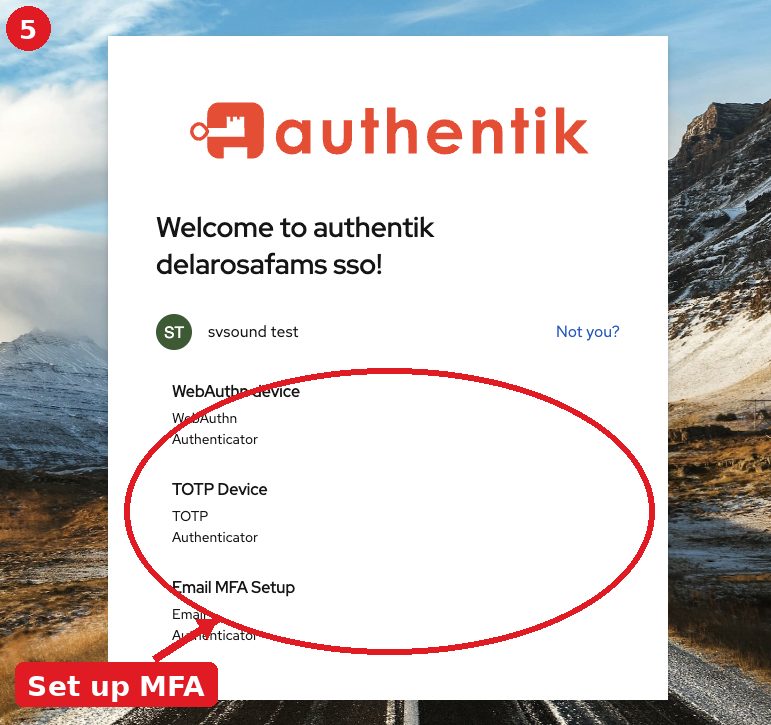
Set up at least one extra lock (a phone prompt or a code app). You land on your app list. Keep the password in Vault.
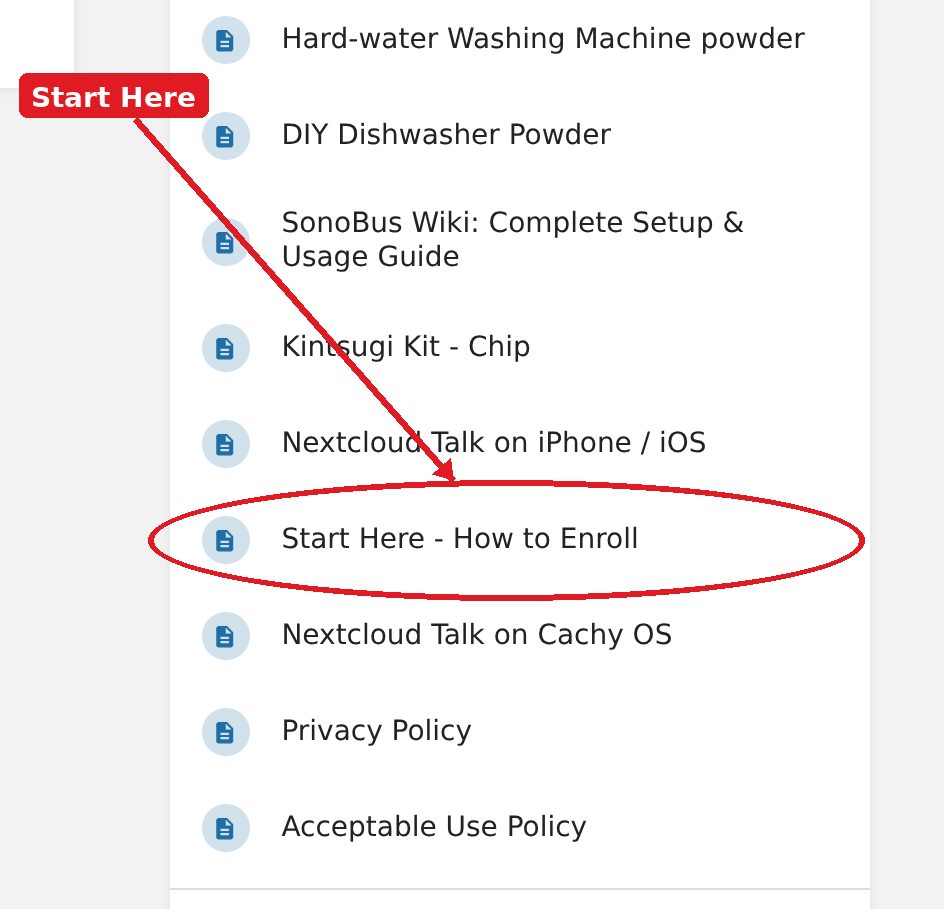
Keep the password in Vault. Read the long version: Start Here - How to Enroll.
Jellyfin — how to watch
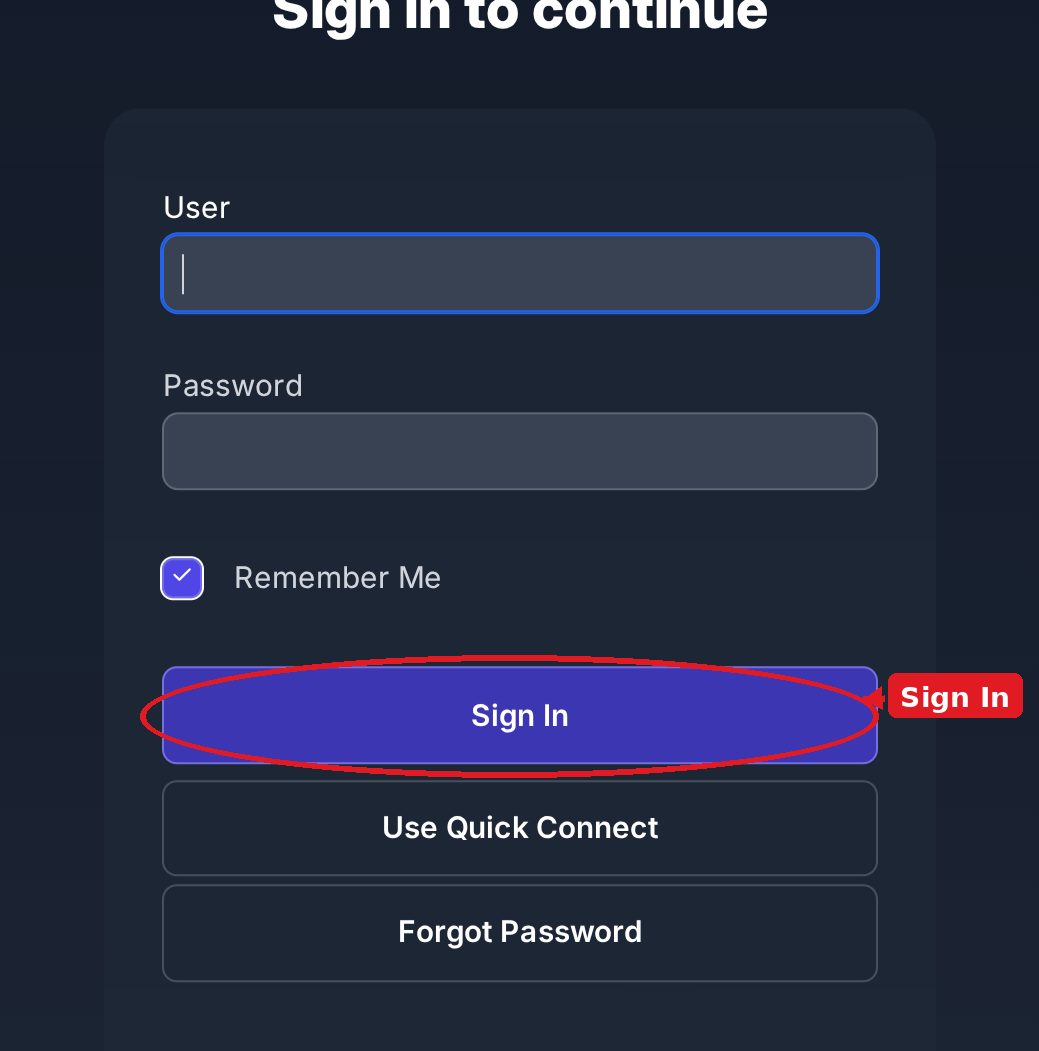
- Watch in the browser at jellyfin.delarosafams.com. The server name is nas1. Sign in with the Jellyfin username an admin gave you. There is no family SSO button on this page.
- On iPhone or iPad, install the official Jellyfin app from the App Store.
- On a computer, get Jellyfin Media Player from the official downloads page — never a random site.
Prefer a native app? Swiftfin is the project's other official Apple client. Desktop files also live on GitHub releases.
Seerr — request movies & TV
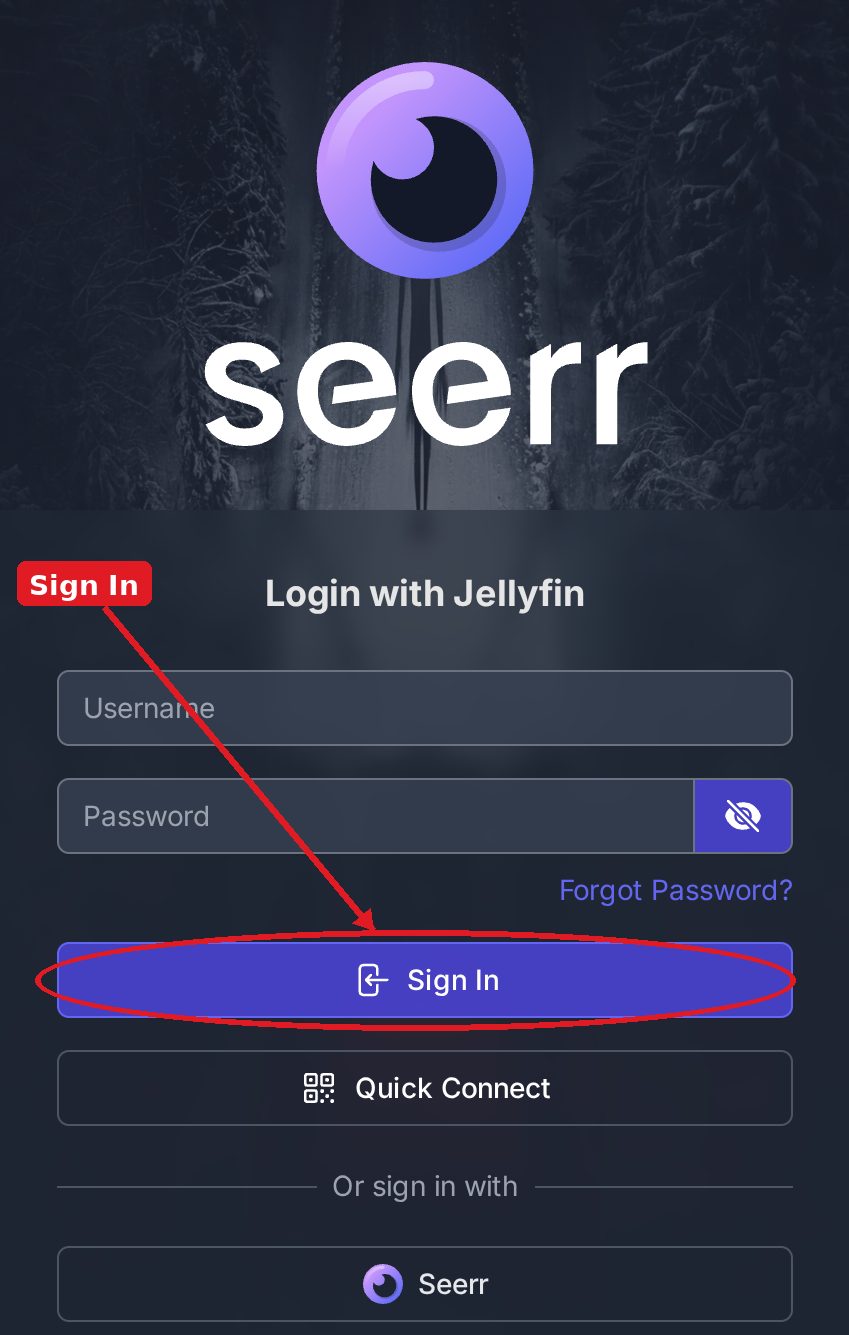
- Open Seerr. Sign in on its own page (not family SSO).
- Search for the movie or show.
- Press Request. It shows up on Jellyfin when it is ready.
The book server
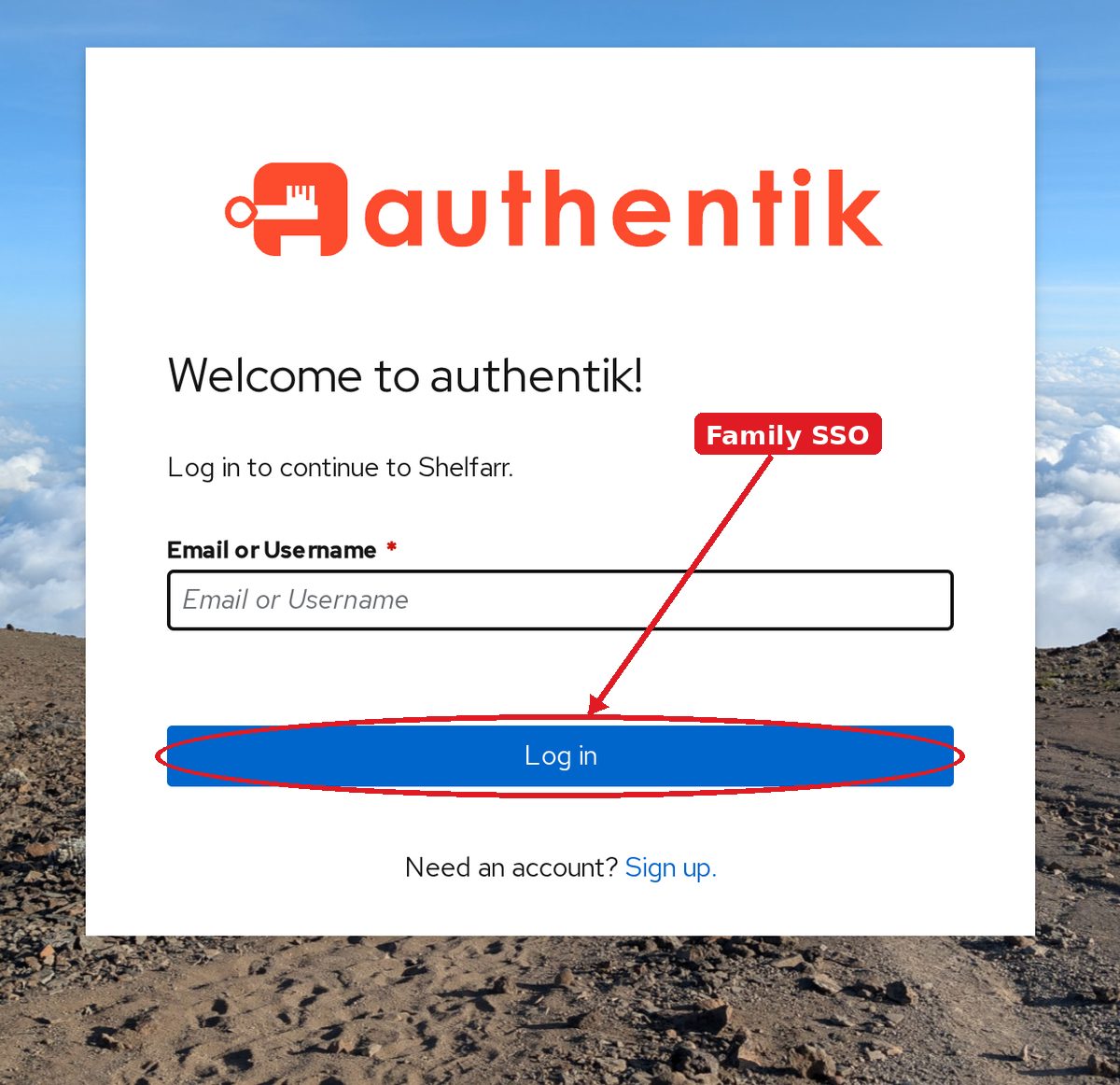
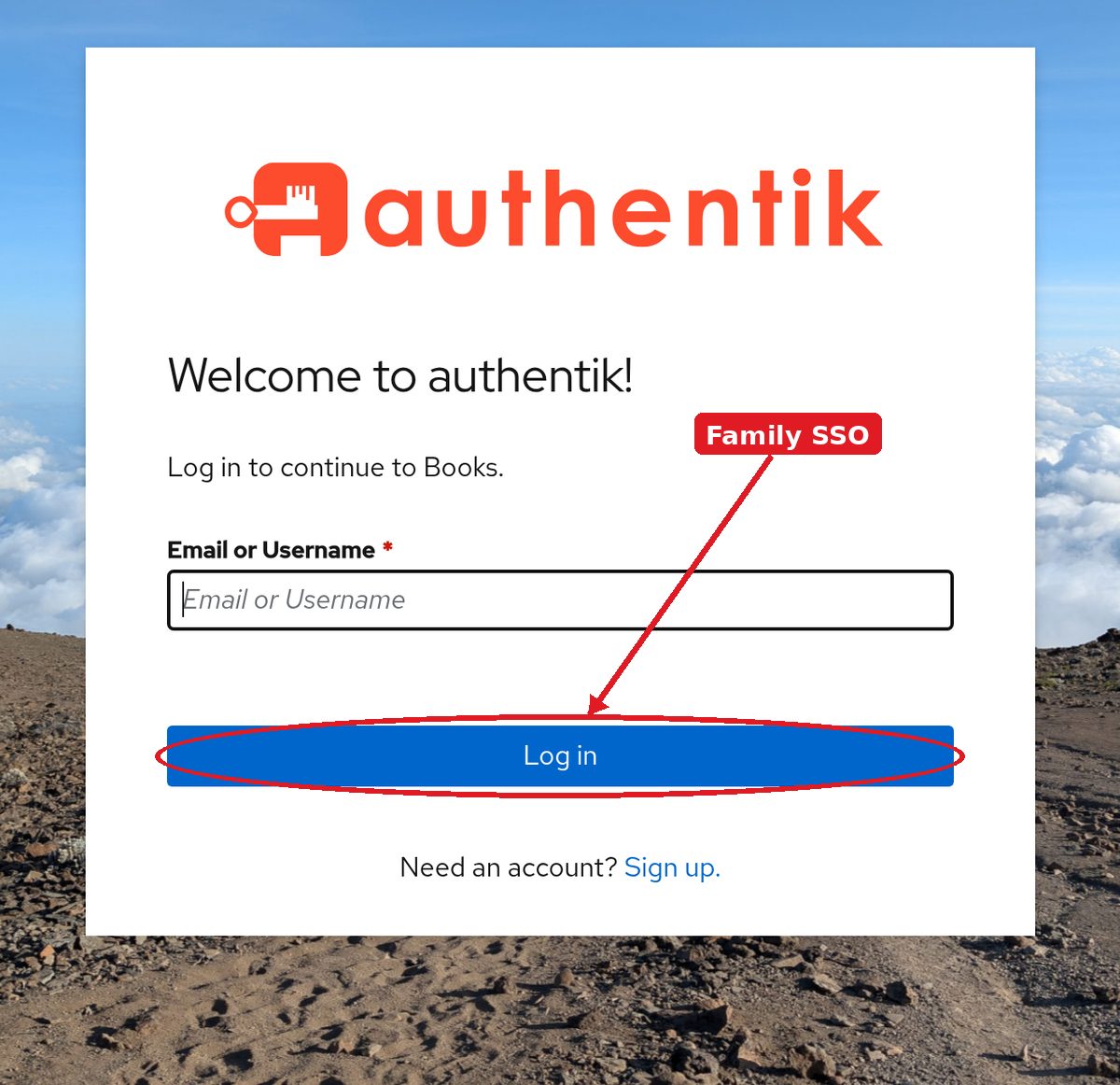
The rest of the services
Bookstack (wiki)
The long how-tos. Anyone can read them.
Public — no sign-in needed to read.
Open Bookstack (wiki)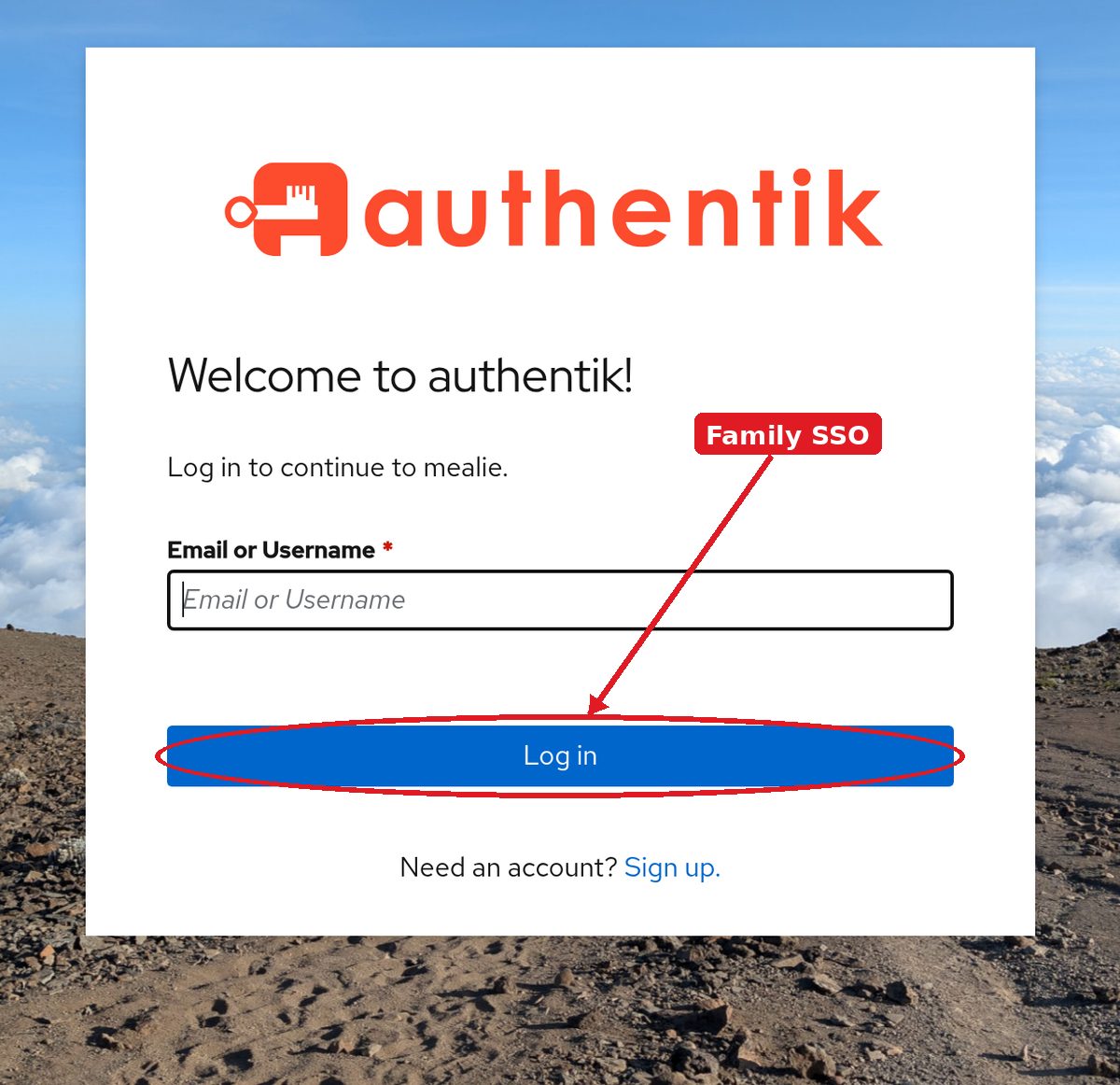
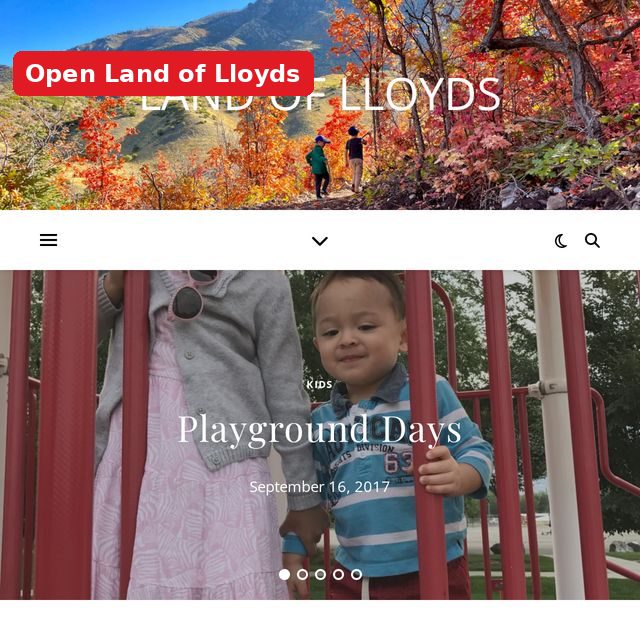
Land of Lloyds
Family journal — adventures, kids, and the long way home.
Opens in a new tab.
Open Land of Lloyds
Need help?
Write Wilee at delarosawilee@gmail.com or Lee Ann at prodigyrose13@gmail.com. Or join the family support call on Nextcloud.
Open the support call